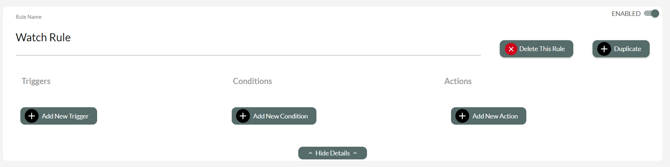
As a refresher, the Dashboard Rules Engine allows a user to set up Triggers, Conditions, and Actions to create scripts and parameters for sensors and devices.
Navigate to Advanced Rules
From the Locations tab, select the Location where you need to set Watch rules, then click the Advanced Rules button

Create a New Rule for Watch
On the Rules list, click Add New Rule button

- Add a Rule Name
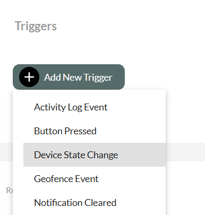
- Click Add New Trigger and select Device State Change from the dropdown menu
- In the Device field, select the Watch that needs the rule
- In the Property field, select the type of Rule needed
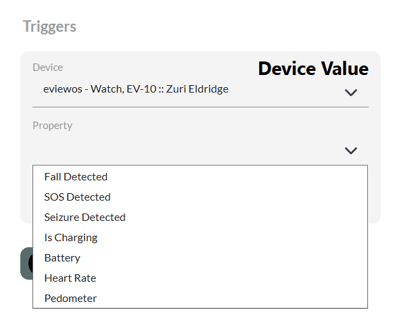
- To Value may be needed depending on the Rule.
- For a Fall alert, select Detected
- For an SOS alert, select Detected
- For a battery charging alert, select Charging or Not Charging
- For Battery status alert, select the battery level for alert (Below 50% for example)
Add Conditions and Actions
Once the Trigger field is set, you can add Conditions if the rule should only apply for specific days, times or other factors.
Actions control what happens when the Trigger and Conditions are met.
-
Click Add New Action. Common watch alert Actions
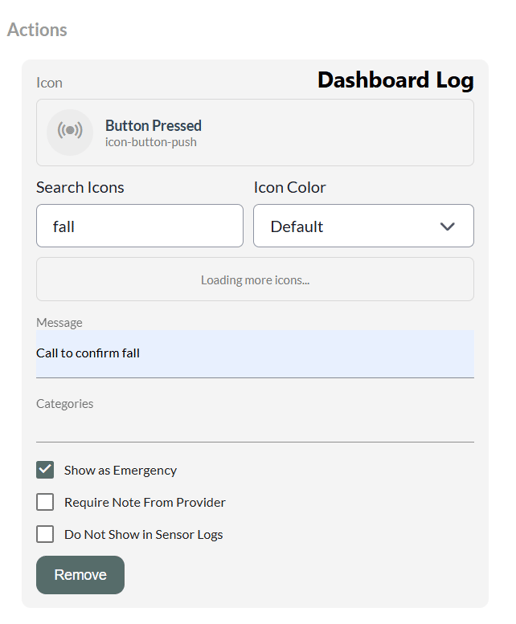
- If alert should show in activity feed, select Dashboard Log
- If alert should initiate a call from Watch, select Start Pers Calling Tree
- If alert should notify other users via email, select Send Email
- Dashboard Log must load a message and select Icon for the alert.
- If the Log should require staff to clear the alert for critical needs, check box for Show as Emergency
Save the Rule
Don't navigate from the page before clicking Save These Rules at the top or bottom of the rules list! Now your rule will be active for the new Watch