
Mobile App issues can challeging to support considering the mobile phone settings can be modified at any time by the individual (it's their own personal device). Also take into consideration how the individual is using the phone and any local enviromental variables that may impact performance (i.e. poor wi-fi, LTE or even resource availiblity issues on the iphone itself) while you assist with triaging the issue.
Based on the issue category, follow the decision tree provided and use the following universal troubleshooting best practices:
For every issue:
- Identify the exact symptom(s)
- Confirm affected location(s), individual(s), and device(s)
- Determine whether the issue is active or intermittent
- Retest after completing each check
- Escalate with documented findings only
Mobile App Decision Tree Quick Links:
- Calls Not Received
- Unable to View 'Show Previews'
Individual is unable to receive calls while phone is in sleep mode:
First checks: Application Notication Settings
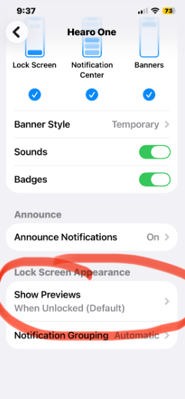
- Select 'Show Previews' from within the Hearo One Mobile Application in the Notifications via the Settings
- Set 'Show Previews' to 'Always'
- The Hearo One Mobile app is now ready to communicate with the Hearo Dashboard!
- Important: If you are unable to scroll down past the 'Announce Notifications' from the 'Hearo One Application Notification Screen' to select 'Show Previews' you may need to adjust the display settings.
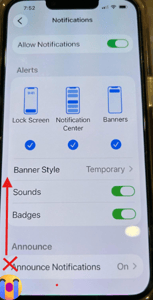
-
- Go to Settings Display & Brightness.
- Scroll down and tap Display Zoom.
- Choose Default instead of Larger Text.
- Go back to your notification settings and see if you can scroll all the way down. After you make the change, you can switch Display Zoom back if you want.
Onsite checks- On the v2 to Mobile App
Note: these checks can be completed by DSPs, individuals, family, or paid backup staff and should not require Technician visit
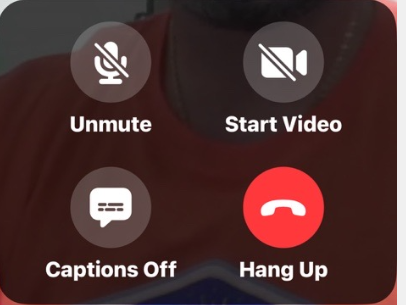
- The following image above shows the mobile app display when a video call is placed from the Hearo Dashboard. Currently, the MIC and Video are MUTED. Both the buttons turn GREEN when active. You may need to instuct the individual to press the 'Start Video' button or 'Unmute' button if you are unable to see or hear them.
Next checks - On the iPhone Itself, for all models
-
Physical Switch or Button
- Older iPhones (with a ring/silent switch): Look on the upper-left side above the volume buttons. Flip the switch toward the screen (the front of the phone) so the orange color is hidden.
- Newer iPhones (with an Action button): Press and hold the Action button on the upper-left side until the phone exits silent mode.
Using Settings
- Open the Settings app.
- Tap Sounds & Haptics.
- Turn off the Silent Mode switch.
Using the Control Center
- Swipe down from the top-right corner of the iPhone screen to open the Control Center.
- Tap the Bell icon to turn off silent mod
Escalate to SLS when:
- Mobile app notification settings are set per the instructions above and the problem can be reproduced on from another iphone device (think of a wide-scale-outage).